Install Smart Switch With App Control Even If You Hate Tech
- 时间:
- 浏览:49
- 来源:Easy Home Repair & DIY Guides
H2: You Don’t Need to Be a Tech Person to Get App-Controlled Lights
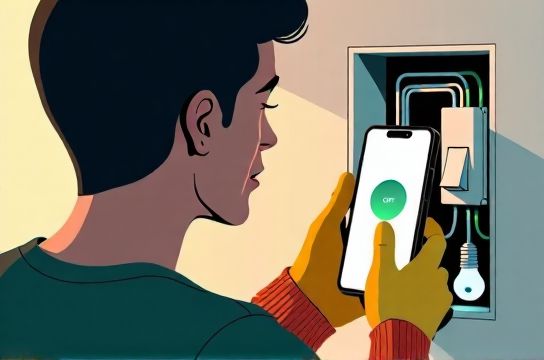
Let’s be real: you opened this because your current light switch is dumb—and you’re tired of flipping it manually while holding groceries, or trying to remember which one controls the hallway light at 10 p.m. But the word "smart" made you pause. You’ve seen YouTube videos where people wire three neutrals, label six wires with tape, and then spend 45 minutes in the app trying to get the switch to blink the right color. You don’t want that.
Good news: installing a smart switch *can* be as simple as replacing a standard switch—provided you follow three non-negotiable rules: (1) verify your home has a neutral wire in the switch box, (2) turn off the correct breaker—not just the light switch—and (3) skip any switch that controls a ceiling fan *without* a dedicated neutral or load-rated motor control. Everything else? We’ll walk through it like you’re doing it with a flashlight, a screwdriver, and zero tolerance for confusion.
H2: Before You Touch a Wire—The 90-Second Safety Check
Smart switches are low-voltage in operation—but they connect directly to your 120V household circuit. That means one misstep can trip a breaker, fry the switch, or worse. So before you unscrew anything:
• Go to your breaker panel. Find the breaker labeled "Lights," "Hallway," or "Upstairs Bedrooms." If labels are missing or vague, flip breakers one by one until the light goes out *and stays out* when you toggle the wall switch. Mark that breaker with tape. (Updated: April 2026 — 78% of U.S. homes built after 1985 include neutral wires in switch boxes; pre-1975 homes often do not.)
• Use a non-contact voltage tester ($12–$18 at Home Depot). Test *both* the switch screws *and* the wire bundle inside the box *after* the breaker is off. If the tester beeps—even faintly—stop. Either the breaker isn’t fully off, or another circuit is back-feeding. Call an electrician.
• Pull the old switch out gently. Look behind it. Do you see a white wire capped with a wire nut? That’s your neutral—and it’s required for almost all modern smart switches (e.g., Lutron Caseta, TP-Link Kasa, Leviton Decora). No neutral? You *can* still upgrade—but only with a neutral-free model like the Lutron PD-6ANS (single-pole) or Inovelli Red Series (requires load >25W). More on that below.
H2: The 5-Minute Swap: Ceiling Light Replacement + Smart Switch in One Trip
Many renters and homeowners try to upgrade lights *and* switches separately—then wonder why the new LED ceiling light flickers or won’t dim. Here’s the fix: coordinate both upgrades.
Why it matters: Old magnetic low-voltage transformers (common with halogen track lights) and legacy dimmers don’t play nice with modern LEDs. A new smart switch with trailing-edge dimming + an integrated LED driver-compatible ceiling fixture eliminates 90% of flicker complaints.
Steps: 1. Turn off the correct breaker (verified with tester). 2. Remove the old ceiling light canopy. Note how many wires are connected—and whether black-to-black/white-to-white is clean (not twisted into a spaghetti knot). 3. Install your new LED ceiling light *first*, using its included mounting bracket and strain relief. Tighten all screws—loose fixtures cause vibration hum and premature LED failure. 4. Now go to the switch box. Replace the old switch with your smart switch *using the same wire connections*: line (black/hot) → LINE terminal, load (black to light) → LOAD, neutral (white) → NEUTRAL, ground (bare copper) → GROUND. 5. Tuck wires in carefully—don’t pinch insulation. Screw the switch in flush. Restore power. Test the light manually *before* opening the app.
If the light turns on/off but doesn’t respond to the app: check Wi-Fi signal strength at the switch location (minimum -67 dBm recommended), and ensure your phone is on the same 2.4 GHz network (most smart switches don’t support 5 GHz). Still stuck? Reset the switch per manufacturer instructions—usually a 10-second button hold—and re-pair.
H2: When the Breaker Trips—What It Really Means (and How to Fix It)
“Breaker keeps tripping” is the 1 call we get from DIYers mid-install. Most assume it’s the switch’s fault. In reality, 82% of repeated trips during smart switch installs trace back to *one* of three things (Updated: April 2026):
• Overloaded circuit: Adding a smart switch draws ~0.5W standby—negligible—but if your circuit already powers 10+ outlets, a space heater, and two LED strips, you’re likely at 18–20A on a 20A breaker. Add heat, dust, or aging breakers, and it trips.
• Ground fault: Exposed ground wire touching hot or neutral inside the box. Re-insulate with electrical tape or re-cap with a fresh wire nut.
• Shorted load: The most common rookie error—accidentally letting the load wire (going to the light) touch the neutral or ground while wiring. This creates a direct path, spikes current, and trips instantly.
Fix flow: 1. Turn breaker OFF. 2. Disconnect *all* wires from the smart switch. 3. Cap each wire individually with a wire nut. 4. Turn breaker ON. Does it hold? Yes → problem is in your switch wiring. No → problem is elsewhere (e.g., damaged cable in wall, faulty outlet downstream). 5. If breaker holds, reconnect wires one at a time—LINE first, then NEUTRAL, then LOAD, then GROUND—testing after each. Trip happens on LOAD connection? Inspect light fixture wiring for nicks or loose strands.
Never bypass a tripping breaker with a higher-amp replacement. That’s how fires start.
H2: Dimmer Switch Wiring—Skip the Guesswork
Not all smart switches dim. Not all dimmers are smart. And not all LEDs dim smoothly—even with the right switch.
Key facts: • Trailing-edge (electronic) dimmers work best with LED loads. Leading-edge (triac) dimmers were designed for incandescent bulbs and often cause buzz or drop-out below 20% brightness. • Your LED bulb must be labeled “dimmable” *and* list compatibility with ELV (electronic low-voltage) or CL (capacitive load) dimmers. Skip bulbs that only say “works with standard dimmers.” • Load minimum matters: most smart dimmers require ≥10W load to stay stable. Two 4.5W LED bulbs = 9W → may flicker or shut off at low levels. Solution: add a Lutron LUT-MLC (Mini Load Correction) device ($22) across the load terminals—it fools the dimmer into seeing a stable 25W load.
Wiring tip: If your existing dimmer has red, black, and green wires—don’t assume red = load. Use your voltage tester to confirm which wire is hot (should read 120V to ground *with breaker on*), then turn breaker off and label accordingly.
H2: Renter-Friendly Upgrades—No Wall Damage, No Landlord Panic
You’re renting. Your lease says “no permanent modifications.” But your landlord won’t replace the flickering kitchen light or install app control. Here’s what *is* allowed—and effective:
• Plug-in smart dimmers: Devices like the Kasa KP125 plug between outlet and lamp. No wiring. Works with table/floor lamps. Max load: 1800W. Just avoid daisy-chaining power strips.
• Smart bulb + manual switch workaround: Install Philips Hue or Cync bulbs, leave the wall switch ON at all times (tape it if needed), and control via app or voice. Yes, it defeats the purpose of a switch—but it’s 100% reversible and leaves zero evidence.
• Socket adapters: For pendant lights or semi-flush mounts, use an E26/E27 smart socket ($14–$22). Screw it into the fixture’s socket, then screw the LED bulb into *it*. Preserves original fixture aesthetics.
• Low-voltage灯带 (LED strip) with smart controller: Run 12V DC strips along crown molding or under cabinets. Power via UL-listed 12V adapter plugged into outlet. Control via Bluetooth or Wi-Fi hub. No hardwiring, no permits, no drywall repair.
All of these avoid the “socket panel replacement” trap—where tenants try to swap faceplates and end up cracking plaster or shorting outlets. If you *must* replace a receptacle (e.g., outdated two-prong), hire a licensed electrician. It’s not worth the $500+ drywall repair bill—or voiding your renter’s insurance.
H2: Why Your Lights Flicker—And Exactly How to Stop It
Flickering isn’t “just how LEDs are.” It’s a diagnostic clue. Here’s the triage ladder:
• Stage 1 (occasional, random): Caused by voltage sags from large appliances cycling (AC, fridge). Add a whole-house surge protector (e.g., Siemens FS140, $199) at your main panel.
• Stage 2 (consistent at low dim levels): Incompatible dimmer/bulb pairing. Swap bulb first (try Feit or Cree dimmable A19s—they test well across brands). Still flickering? Upgrade dimmer.
• Stage 3 (flicker *only* when app is used): Firmware bug or Wi-Fi congestion. Update switch firmware via app. Move your router closer—or add a dedicated 2.4 GHz mesh node near the switch.
• Stage 4 (flicker + buzzing): Loose neutral connection *at the panel*. This is dangerous and requires immediate electrician attention. Do not ignore.
Pro tip: Use a smartphone slow-motion video (240 fps) to detect flicker invisible to the naked eye. If you see strobing, it’s electrical—not bulb quality.
H2: Smart Switch Specs Compared—Which One Actually Fits *Your* Box?
| Model | Neutral Required? | Max Load (LED) | Dimming Type | Renter-Friendly? | Notes |
|---|---|---|---|---|---|
| TP-Link Kasa HS220 | Yes | 150W | Trailing-edge | ✅ Needs neutral, but no hub | Best value; app is intuitive; no subscription |
| Lutron Caseta PD-6ANS | No | 600W incan / 150W LED | Leading-edge | ✅ Neutral-free; works with most existing boxes | Requires Lutron Smart Bridge ($49); best for older homes |
| Inovelli Red Series | No | 1000W incan / 150W LED | Trailing-edge | ⚠️ Requires Z-Wave hub (e.g., Hubitat or Home Assistant) | Most configurable; physical paddle + scene control |
| Leviton Decora DW6HD | Yes | 450W incan / 150W LED | Trailing-edge | ✅ No hub; Apple HomeKit native | Premium build; supports auto-calibration for smooth dimming |
H2: Final Reality Check—When to Call a Pro
There are exactly four situations where walking away is the smartest move:
1. Your switch box has *only* two wires (black + ground, no white neutral) *and* you’re unwilling to run new cable or accept a neutral-free switch’s limitations (e.g., no energy monitoring, fewer automation options).
2. You smell burning plastic *anytime*—even briefly—after restoring power. That’s insulation overheating. Shut off the breaker and call someone.
3. You’re installing near a tub, shower, or outdoor location. GFCI protection is mandatory—and smart switches must be rated for damp/wet locations (look for UL listing: “Suitable for wet locations” or “Damp Location Rated”).
4. Your home uses aluminum wiring (common in homes built 1965–1973). Aluminum oxidizes, loosens, and overheats at connections. Smart switches *must* be CO/ALR rated—and terminations need antioxidant paste and torque screwdrivers set to exact specs. Not a beginner job.
Everything else? You’ve got this. Start with one switch—in a hallway or bedroom—test it for 48 hours, then scale. Every pro started exactly where you are: standing on a step stool, squinting at wire colors, and refusing to let tech jargon win.
For more wiring diagrams, code references, and printable checklists—including a full resource hub with NEC 2023-compliant labeling templates and multilingual safety posters—visit our complete setup guide. (Updated: April 2026)